
Showing posts with label technology. Show all posts
Showing posts with label technology. Show all posts
Thursday, June 23, 2011


Wednesday, May 4, 2011
Intelligent Explorer - IE
How? Let's take an example with Google site (try with any other or even complex URL as well). While the full address is 'http://www.google.com', omit the first letter 'h' and input 'ttp://www.google.com' in the address bar.
Result? While all other major browsers including Chrome, Firefox and Safari throw "Unable to recognize the address or 'ttp:' protocol" message, only IE opens up the Google page.
Ofcourse, it's as simple as to automatically prefix the missing 'h' in the URL that begin with 'ttp:'. But isn't it nice to see that IE can handle even such simple things?
Cool!!
Result? While all other major browsers including Chrome, Firefox and Safari throw "Unable to recognize the address or 'ttp:' protocol" message, only IE opens up the Google page.
Ofcourse, it's as simple as to automatically prefix the missing 'h' in the URL that begin with 'ttp:'. But isn't it nice to see that IE can handle even such simple things?
Cool!!
Wednesday, July 21, 2010
Rupee Font
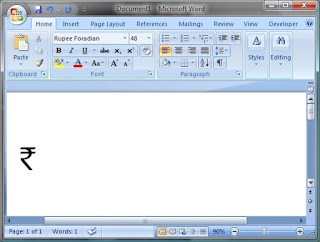
While it may take months for the new Rupee symbol to appear on the keyboards due to involved technical procedures like Unicode Consortium approval, etc., the Rupee font is already out now in the market which is created by Foradian.
You can visit its website directly (click here) and follow the instructions given.
You can visit its website directly (click here) and follow the instructions given.
The steps are pretty simple.
1) Download the Font from the above site
2) Install it in your PC
3) Open the word document and type grave accent symbol i.e "`" (without double quotes). The font is mapped to grave accent symbol
4) Block the symbol ` and change the font to 'Rupee Foradian' from the drop down. And there you see the new symbol! Cool!!
Good work by Foradian!
Thursday, January 21, 2010
google features - tips & tricks
I was just wondering at the various search options available in Google. I'm not talking about "Advanced Search" option where you can provide some additional information to filter your search requirements nor about "I'm Feeling Lucky" which will directly take you to the best related website.
I'm talking about the keywords or modifiers that can be used in the search criteria. Somehow came across one such keyword and I started exploring for more such modifiers. Here are some for you.
filetype:
If you're looking for a specific file format in the internet, you can specify the same using the keyword 'filetype:'. For example, if you're looking for a pdf file on Apache tutorials, you can give your search query as "filetype:pdf Apache tutorials". If it is a PowerPoint file, then it should be "filetype:ppt Apache tutorials".
site:
If your search is in a particular site, use the keyword 'site:' and specify the website where you are looking for. For example, "site:mailerum.blogspot.com Kinabalu" would display all the pages from my blog that are related to Kinabalu.
inurl:
Let's say you are looking for the sites which addresses carry a specific word. You can use the keyword 'inurl:'. For example, "inurl:africa". This will give the results of all the urls that contain 'africa'.
intitle:
Forget about URL. You want to filter on the titles. Simply use 'intitle:' keyword like "intitle:avatar". Try to use the exact cases and within double quotes 'intitle:"Avatar" and your search results will be more closer to your expectations.
inblogtitle:
This one is similar to 'intitle:' except that the results are fetched from blog sites.
There are other keywords like time, temperature, capital among others used for queries related to any city or country. Note there is no colon (:). The result is also highlighted on on top of the page. If you want to know the current time of London, for example, just give "time London" and there you get the current time in London. Similarly works other keywords like temperature & capital.
Not just these. You may use the textbox (search box) just like your calculator. Simply type in the calculations and yout get the results right away. For example, input "1234+4321" and press enter and you have the result. You can try almost all operators like +, -, *, /, % (mod) and even ^ (exponent).
Aren't these amazing? It should be evident by now that why google still tops in the most popular search engines. Great.
Hope this article was useful atleast a bit. I think this is my first post on techy related stuff in spite of being in line for years. See you again soon.
I'm talking about the keywords or modifiers that can be used in the search criteria. Somehow came across one such keyword and I started exploring for more such modifiers. Here are some for you.
filetype:
If you're looking for a specific file format in the internet, you can specify the same using the keyword 'filetype:'. For example, if you're looking for a pdf file on Apache tutorials, you can give your search query as "filetype:pdf Apache tutorials". If it is a PowerPoint file, then it should be "filetype:ppt Apache tutorials".
site:
If your search is in a particular site, use the keyword 'site:' and specify the website where you are looking for. For example, "site:mailerum.blogspot.com Kinabalu" would display all the pages from my blog that are related to Kinabalu.
inurl:
Let's say you are looking for the sites which addresses carry a specific word. You can use the keyword 'inurl:'. For example, "inurl:africa". This will give the results of all the urls that contain 'africa'.
intitle:
Forget about URL. You want to filter on the titles. Simply use 'intitle:' keyword like "intitle:avatar". Try to use the exact cases and within double quotes 'intitle:"Avatar" and your search results will be more closer to your expectations.
inblogtitle:
This one is similar to 'intitle:' except that the results are fetched from blog sites.
There are other keywords like time, temperature, capital among others used for queries related to any city or country. Note there is no colon (:). The result is also highlighted on on top of the page. If you want to know the current time of London, for example, just give "time London" and there you get the current time in London. Similarly works other keywords like temperature & capital.
Not just these. You may use the textbox (search box) just like your calculator. Simply type in the calculations and yout get the results right away. For example, input "1234+4321" and press enter and you have the result. You can try almost all operators like +, -, *, /, % (mod) and even ^ (exponent).
Aren't these amazing? It should be evident by now that why google still tops in the most popular search engines. Great.
Hope this article was useful atleast a bit. I think this is my first post on techy related stuff in spite of being in line for years. See you again soon.
Friday, November 27, 2009
Google's Image Swirl
Image Swirl is an extension to Google's existing Image search page. The new site organises the search results into similar groups and sub-groups and produces them in a neat visual manner. For example, if you search for 'Sony', the resultset will be organised into groups of similar products like Camera, Notebook, Handycam, Playstation, etc.. It's cool visually and fun to play around with the design structure. However I feel the resultset of the images are very less compared to the existing tool. At the sametime the images look repetitive. Understand it is still in development.
Also, URL link is different from Google's standard link and there is no link to it from the main page like how it's there for the existing features of Image, Web, Maps, etc.. Have a look and play around!!
Also, URL link is different from Google's standard link and there is no link to it from the main page like how it's there for the existing features of Image, Web, Maps, etc.. Have a look and play around!!
Friday, January 9, 2009
9-1-1
Last night I was doing some experiment with my mobile and came across a strange thing. I could dial the numbers 911 and 112 (emergency phone numbers in US and UK) even when my phone keypad was locked. Wow! How wonder is that?
Later learnt that this facility is there in almost all the GSM mobiles.
I already knew that these numbers can be called even when your new SIM is not activated or you are roaming abroad, outside your network coverage, even when your roaming facility is not enabled (during which case the call would end up at the local emergency numbers like 100 in India or 999 Singapore).
Good feature, indeed.
Later learnt that this facility is there in almost all the GSM mobiles.
I already knew that these numbers can be called even when your new SIM is not activated or you are roaming abroad, outside your network coverage, even when your roaming facility is not enabled (during which case the call would end up at the local emergency numbers like 100 in India or 999 Singapore).
Good feature, indeed.
Wednesday, October 1, 2008
taken aback
Came across this display about PC a few days ago in one of the big electronic malls here. Gosh!! High end configuration but OS is just DOS?


Subscribe to:
Posts (Atom)

-
 Nilave Mugam Kaatu - by Ramichellakumar A latest Tamil full novel by my mom published in this August issue of Tamil monthly PENMANI. I'm...
 -
 Finally, was able to make some time to download the pics from my cam and upload them here. The six days Kinabalu trek was really really awes...
